I've stared at layouts where everything screams for attention. Every heading bold. Every button a different color. The result? Users click nothing. Hierarchy is the first of four skills in our modern UI design craft guide, and the one everything else leans on.
Visual hierarchy fixes that. It's the invisible structure that tells people where to look, what matters, and what to do next. Get it right and conversion rates climb. Get it wrong and you've built a beautiful page nobody can use.
The principles of visual hierarchy come down to arranging design elements so one clear focal point grabs attention first, then guides the viewer toward your calls to action. It's the same instinct graphic designers rely on in print, applied to a screen where every choice shapes the user experience. Nothing here is decorative. Every choice either draws attention to what matters or scatters it across the page.
TL;DR: Visual hierarchy uses size, contrast, color, spacing, alignment, repetition, and proximity to guide user attention. Eye-tracking research from Nielsen Norman Group confirms users follow predictable scan patterns, F-pattern for text-heavy pages, Z-pattern for minimal layouts. Master these seven principles and your interfaces become self-explanatory.
Why Does Visual Hierarchy Matter More Than Aesthetics?
Weak visual hierarchy is one of the most common sources of e-commerce usability problems, not ugly design, but confusing structure. Baymard Institute's checkout and product-page research keeps surfacing the same theme: users couldn't find CTAs, missed critical product info, or abandoned forms because labels blended into backgrounds.
If product pages are the surface you're working on, the layout patterns that fix those specific failures are collected in e-commerce product page patterns.
I worked on a SaaS dashboard last year where the client insisted every metric card be the same size and color. "Clean and consistent," they said. Support tickets spiked 40% in two weeks. Users literally couldn't tell which numbers mattered. We introduced three card sizes and a red/amber/green accent system. Tickets dropped to pre-launch levels within days.
Pretty doesn't help if people can't parse the page. Hierarchy is the skeleton. Aesthetics are the skin.
Hierarchy is the skeleton. Aesthetics are the skin.
How Does Size Create Instant Priority?
Size is the bluntest hierarchy tool, and that's exactly why it works. Fitts's Law tells us larger targets are faster to acquire. But size also communicates importance before a single word gets read.
Your type scale choices directly feed into this, and the best UI design tools 2026 affect how cleanly your scale transfers to dev handoff. Feed your base size into the type scale calculator if you want the steps derived from a ratio instead of picked by hand. Here's what I use as a baseline type scale for web dashboards:
- Page title: 32-40px (2-2.5rem)
- Section heading: 24px (1.5rem)
- Card heading: 18-20px (1.125-1.25rem)
- Body text: 16px (1rem)
- Caption/metadata: 14px (0.875rem)
The ratio between levels matters more than absolute sizes. A 1.25-1.5x jump between each level gives clear separation. Anything less than 1.2x and users struggle to distinguish levels, I've tested this with clients multiple times.
What about icons and images? Same rule applies. A 48px icon reads as primary. A 24px icon reads as supporting. Don't make everything 32px and hope spacing does the work.
What Role Does Contrast Play in Directing Attention?
The WCAG 2.2 spec requires a 4.5:1 contrast ratio for normal text and 3:1 for large text (WCAG 2.2, 2023). Not sure a pairing clears that bar? Our free WCAG contrast checker shows the live ratio with AA and AAA badges as you tweak the colors. But contrast isn't just about accessibility compliance. It's a hierarchy weapon.
High contrast pulls the eye. Low contrast recedes. I structure most interfaces around three contrast tiers:
- Primary elements (headings, CTAs): full contrast, black on white or white on brand color
- Secondary elements (body copy, icons): 70-80% opacity or a dark gray (#374151)
- Tertiary elements (timestamps, dividers, disabled states): 40-50% opacity or light gray (#9CA3AF)
Here's an unpopular opinion: most designers use too little contrast variation. They'll set body text at #333 and captions at #555. That's a difference human eyes barely register on a backlit screen. Push the gap wider. Your users aren't examining your palette under a loupe, they're glancing at a phone while walking.
Every ratio in this section is a number, and a number is only as honest as the screen you measured it on. A panel that over-brightens shadows can flatter a 3.5:1 pairing into looking like it passes, and factory color settings drift over months. A wide-gamut monitor plus a calibrator is how you make sure the 4.5:1 you signed off is the 4.5:1 your user gets.
How Should You Use Color to Guide User Decisions?
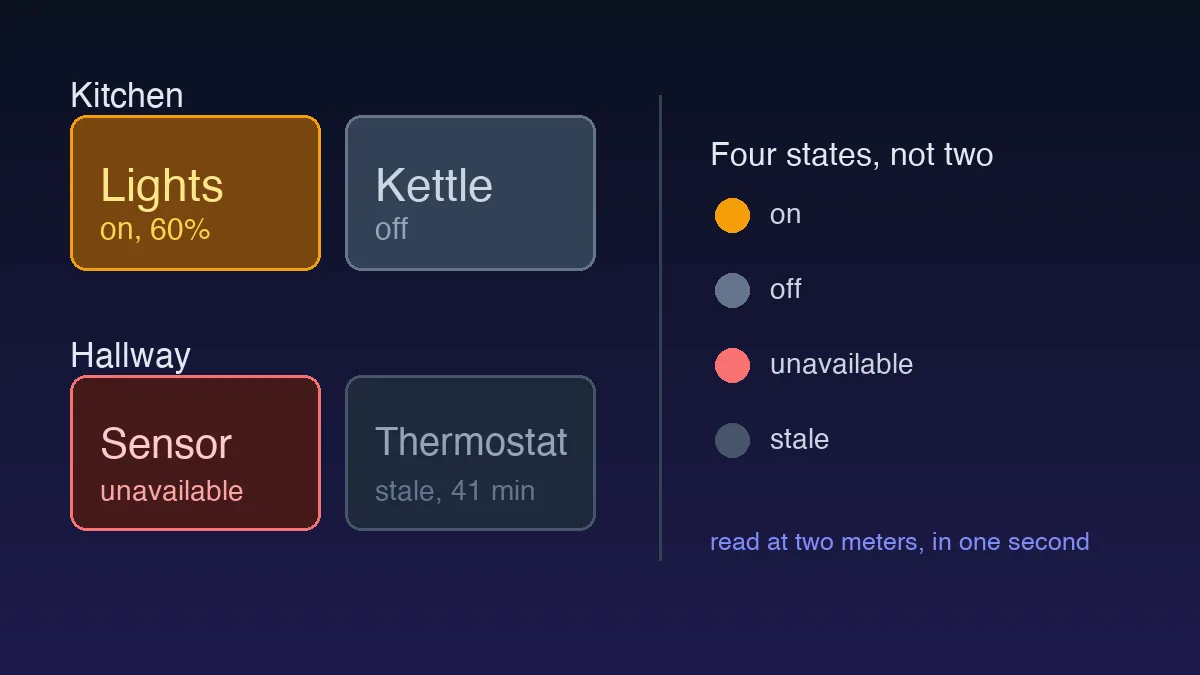
Color carries emotional weight that size and spacing don't. A red badge on an icon creates urgency without a single word. Bright colors pull the eye before anything else, so reserve your most saturated tones for the one action that matters most; scatter bright colors everywhere and they cancel each other out. Stripe's dashboard uses exactly two accent colors, blue for actions, green for success states, and it's one of the most scannable financial interfaces around.
Rules I follow on every project:
- One primary accent color for all interactive elements (links, buttons, toggles)
- Semantic colors only for status: green/success, red/error, amber/warning, blue/info
- Never more than 3 accent colors per page, anything beyond that and hierarchy collapses
- Gray isn't boring; it's your hierarchy backbone. Use 5-7 gray shades and you can build entire layouts where color accents actually pop
Eye-tracking studies consistently show a colored element pulls initial fixations ahead of its monochrome neighbors. But flood the page with color and that advantage vanishes. Restraint is the skill. For social media content where you have roughly 1.2 seconds to stop someone scrolling, these same contrast and color principles apply, the motion design for social media guide shows how they translate into content that performs on TikTok and Reels.

Does Whitespace Actually Improve Comprehension?
Yes, and generous margins genuinely help. You'll see a widely repeated claim that whitespace boosts comprehension "by 20%," but that number traces back to a small 2004 hypertext study that doesn't really support the broad version people quote, so treat it as folklore, not fact.
What holds up in practice: white space, sometimes called negative space, isn't wasted room; it's what lets a focal point breathe and keeps the layout from reading like a wall of noise. Material Design 3 builds spacing on an 8dp grid, which in practice tends to mean around 16px of padding inside components and 24px between sections.
I used to cram content tight on dashboards. "Screen real estate is expensive," I'd tell myself. Then I ran an A/B test on a client's analytics page, same content, just 40% more whitespace. Task completion time dropped from 14 seconds to 9 seconds. Five seconds doesn't sound like much until you multiply it by 200 daily users.
Whitespace does three things for hierarchy:
- Groups related items, proximity signals relationship (Gestalt principle)
- Isolates important elements, a CTA button surrounded by 32px of padding demands attention
- Creates rhythm, consistent vertical spacing makes scan patterns predictable
How Do Alignment and Grid Systems Reinforce Structure?
Alignment is hierarchy's silent partner. Misaligned elements create visual noise. The eye wastes energy parsing spatial relationships instead of reading content. Most Western readers scan in an F-pattern that begins in the top left corner, so your strongest alignment anchor and your most important element usually belong there.
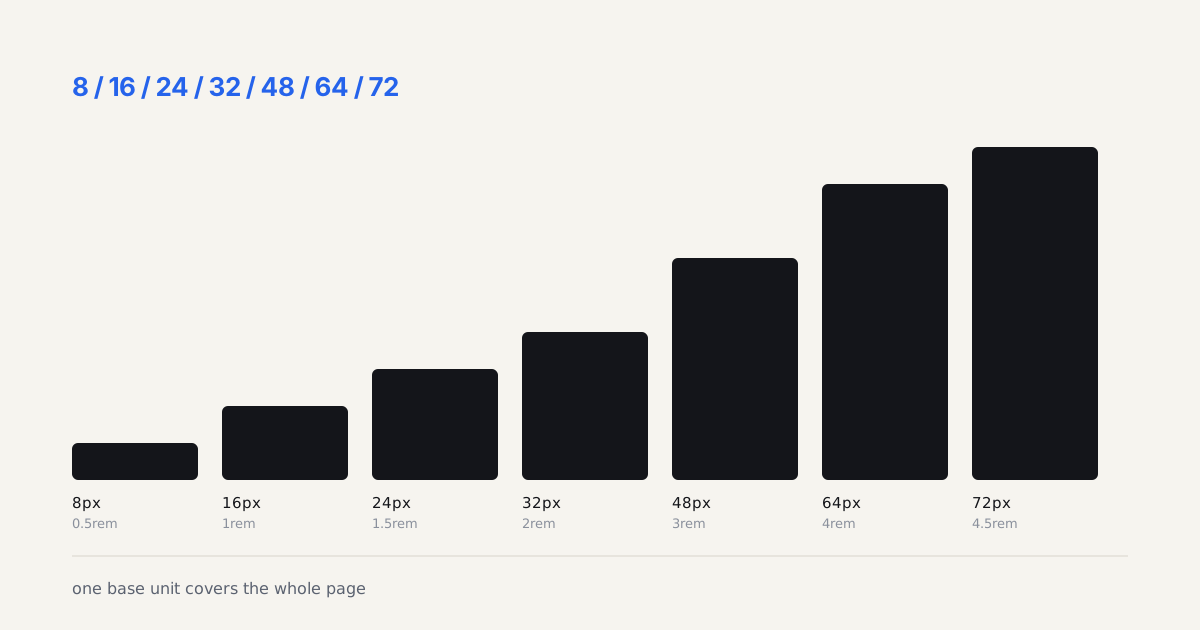
An 8px baseline grid handles 90% of alignment decisions. Every margin, padding, and component height snaps to multiples of 8: 8, 16, 24, 32, 48, 64. If you're building a design system in Figma, baking this grid into your tokens and auto-layout settings makes alignment almost automatic.
Translating that to actual layout code is where the CSS layout patterns guide comes in, once your Figma spacing matches your CSS grid template, hierarchy stops breaking between design and dev.
Why 8 and not 4? Divisibility. 8 divides cleanly into halves and quarters on any screen density. The 4px grid works too but produces tighter spacing that can feel cramped, especially on mobile. I've shipped projects on both, 8px wins for readability every time.
Repetition locks hierarchy into muscle memory
When your H2 headings always look the same, same size, weight, color, and spacing, users learn the pattern after the first two instances. They stop processing "is this a heading?" and start processing the actual content. That cognitive shortcut is the whole point. Break the pattern and you reset their learning.
| Principle | What It Does | Example From This Guide |
|---|---|---|
| Size | Signals importance and speeds target acquisition | 32-40px page title versus 16px body text |
| Contrast | Pulls the eye toward what matters, lets the rest recede | Primary elements at full contrast, tertiary at 40-50% opacity |
| Color | Adds emotional weight and urgency to a single action | Stripe's dashboard: blue for actions, green for success |
| Whitespace | Lets a focal point breathe and isolates key elements | 40% more whitespace cut task time from 14s to 9s |
| Alignment | Removes visual noise so the eye stops parsing spatial gaps | 8px baseline grid driving every margin and padding |
| Repetition | Turns a recurring pattern into a learned shortcut | Consistent H2 styling stops readers re-checking "is this a heading" |
| Proximity | Groups related items so relationships read instantly | 32px of padding isolating a CTA button |
What Are the Best Strategies for Visual Hierarchy?
Five levers, ranked by how much they actually move the needle: size first (it reads before a viewer consciously processes anything else), contrast second (a dark button on a light background wins the eye every time), whitespace third (isolation reads as importance even without changing color or scale), alignment fourth (a grid tells the eye where to travel next), and color last, because color alone is the weakest and most misused hierarchy signal on its own.
Why that order? Eye-tracking research keeps landing on the same pattern: people scan for size and contrast before anything else registers, which is why a hierarchy built on color alone falls apart the moment someone's on a dim screen or has a color vision deficiency. My own rule of thumb: if you had to strip a design down to grayscale and it still read correctly, the hierarchy was built right. If gray flattens everything into a single gray blob, color was doing work it shouldn't have been trusted with.
Signifiers, affordances, the idea that a design should tell you what to do before you think about it: that language predates every lever above, and it comes from one book more than any other.
What's the Fastest Way to Audit Your Current Hierarchy?
Squint. Seriously. The squint test has been a design staple for decades and it still works. Blur your vision or step back from the screen. What pops out? If it's the right things, heading, primary CTA, key data, your hierarchy holds. If secondary labels or decorative elements dominate, you've got work to do.
A more rigorous method: take a screenshot, convert it to grayscale, then apply a 5px Gaussian blur in Figma. The elements still visible after that treatment are your hierarchy winners. Everything else is supporting cast.
I run this test on every major layout before handing off to developers. It's caught problems that pixel-level review missed, because hierarchy is about pattern, not precision.
Color is another hierarchy lever that works directly alongside contrast and size. If you're building your palette from scratch, this color palette generator for UI design covers which tools actually work for UI work versus which are better suited for marketing graphics, and includes a free generator that tests your palette on a real interface.
Picking the right primary tool also matters here, the Figma vs Canva comparison breaks down which one fits structured UI hierarchy work and which fits marketing assets. And if you're applying visual hierarchy to game interfaces specifically, the Godot game art design guide shows how these same size, contrast, and spacing principles play out inside Godot's UI theme editor.
Hierarchy techniques also extend into animated UI, the motion design for web guide covers how transition timing reinforces (or breaks) the static hierarchy you've built, and the visual hierarchy in motion graphics guide carries these same size and contrast principles into moving frames.
Visual states (hover, active, disabled) are where hierarchy and interaction logic meet; React hooks best practices on Coding Dunia shows how useState and useReducer determine which state gets rendered at any given moment, which directly shapes what hierarchy the user actually sees.
Hierarchy gets trickier once AI enters the interface; the designing for Apple Intelligence guide shows how Apple's deference principle deliberately keeps AI suggestions one tier below primary content so they assist without hijacking attention. Hierarchy also breaks in less obvious ways once you flip the color scheme; the dark mode implementation guide covers why the same contrast ratios and elevation cues need an entirely different token set at night.
The zero-data version of a screen is where hierarchy gets tested hardest, keeping that hierarchy intact when there's nothing to show yet takes deliberate work. And a well-documented component library is what makes hierarchy rules stick across a team, enforced at the component level.