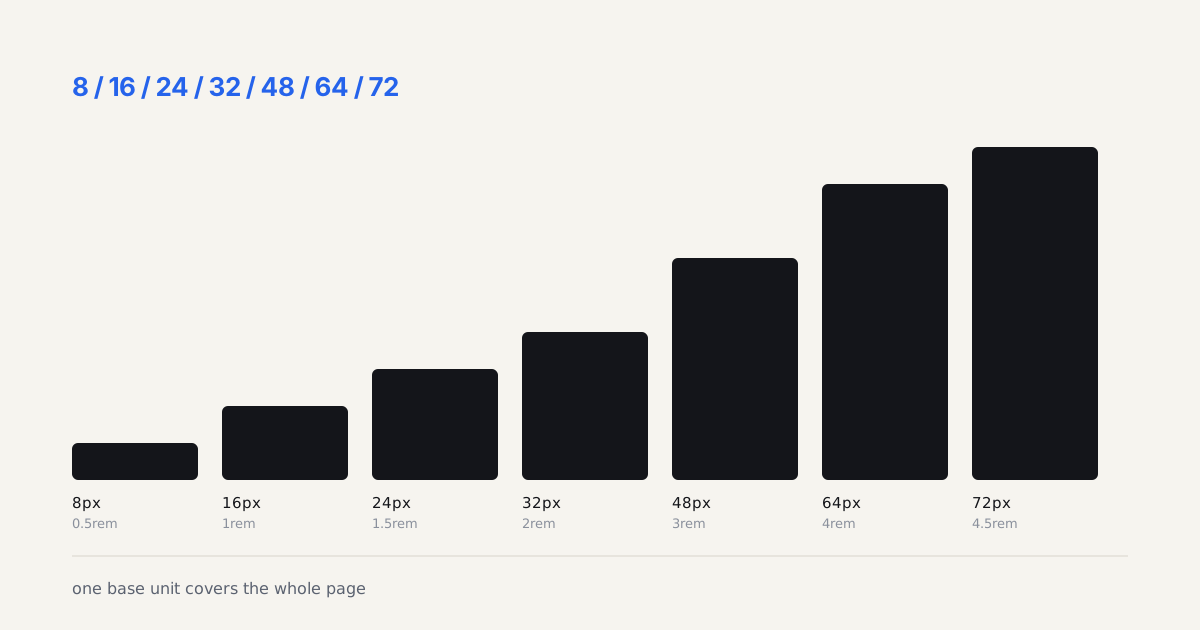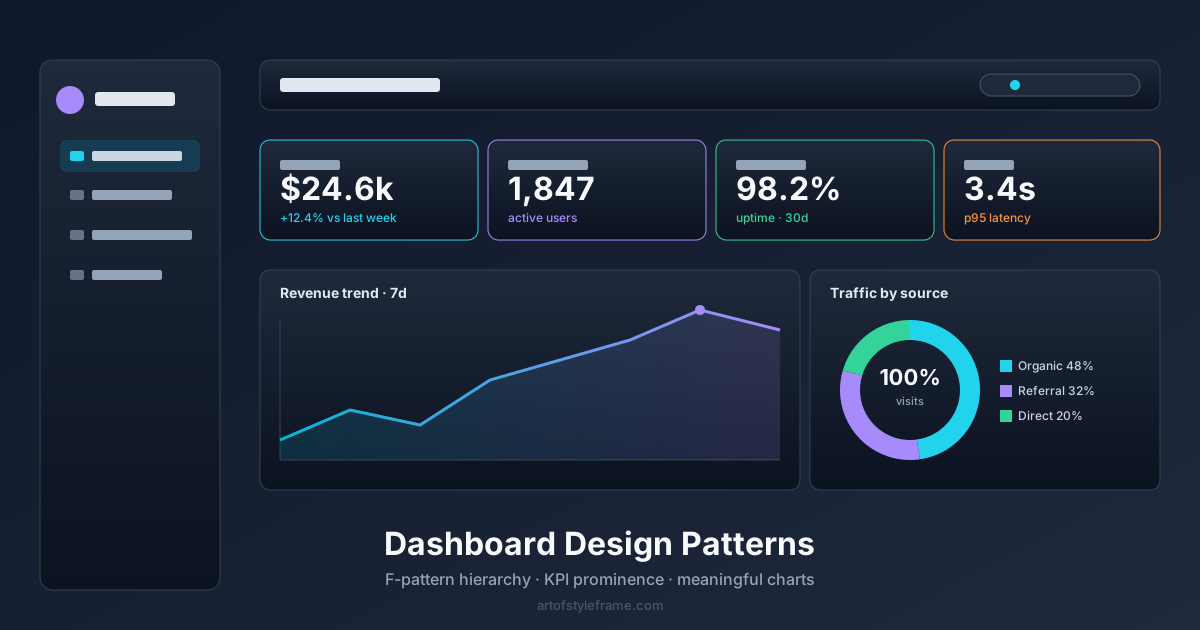
A modern dashboard is four decisions, and you can copy all four: a 256px sidebar that collapses to 64px, a strip of 4-6 KPI cards above the fold, a 12-column CSS Grid with 24px gutters underneath, and row heights of minmax(200px, auto) so panels grow instead of scrolling internally. That's the layout Linear, Stripe and Grafana converge on. The rest of this page is why each number is what it is, and where copying them goes wrong.
So what is dashboard design, underneath the screenshots? It's the practice of arranging live data so one specific person can answer one question fast. That makes it a set of layout decisions, not a visual style: where navigation sits, how many numbers you allow above the fold, how the grid reflows, and what each empty screen says. Nail those and the palette barely matters.
I've designed nine dashboards over the past five years. The first three were bad. Not ugly-bad, functionally bad. Users couldn't find the data they needed, navigation confused them, and I kept hearing the same feedback: "Where do I go to see X?" Density control is one of four skills in our modern UI design craft guide, where it meets hierarchy, handoff, and tooling.
Dashboards fail when designers treat them as data murals instead of tools. A dashboard isn't a report. It's a cockpit. Every element needs to earn its pixel space by helping someone make a decision or take an action.
TL;DR: The strongest dashboard pattern in 2026 combines sidebar navigation (240-280px), a card-based metric strip (4-6 KPIs), and a flexible content grid using CSS Grid with
auto-fill. Prioritize information density over whitespace, dashboard users are power users who want data, not breathing room.

Why Do Most Custom Dashboards Feel Worse Than SaaS Tools?
Because SaaS products like Linear, Stripe, and Grafana have iterated on their dashboards through thousands of user sessions. They've stripped away decoration and optimized for task completion. Custom dashboards usually get designed once, by someone who hasn't watched real users click through them under pressure.
The gap comes down to three things: navigation predictability, information density, and load state handling. Strong visual hierarchy ties all three together. Miss any of these and you'll build a dashboard that looks great in Figma and frustrates everyone in production.
Designed once is the phrase doing the damage there. Motion teams solved that problem years ago by committing the look on a single finished still before anything expensive starts, and the habit transfers cleanly: build a styleframe of the busiest screen, at real density with real numbers in it, and color, type and spacing stop being relitigated component by component for the rest of the project.
Most custom dashboards look great in Figma and frustrate everyone in production.
Which Dashboards Are the Best Design Examples in 2026?
Linear, Stripe, Grafana, and Vercel. I send every designer I work with to those four, and each one teaches a different lesson. You don't need to look at screenshots to use them; the decisions are measurable, and that's the point.
| Product | What it gets right | The number to copy |
|---|---|---|
| Linear | Density without clutter, keyboard-first movement | 36px row height, almost no chrome |
| Stripe | Metric discipline, nothing competes for attention | 4 KPI cards above the fold, full stop |
| Grafana | Monitoring views that stay legible when crowded | 20+ panels on one screen, still readable |
| Vercel | Progressive disclosure done honestly | Summary up top, logs one click deep |
None of these won a design award. That's exactly why they're worth studying. Each one survives daily abuse from impatient power users, which is the only benchmark I trust after nine dashboard projects. Isn't it strange how often "best dashboard design" gets answered with a mood board instead of a spec?
So copy the decisions, not the pixels: sidebar navigation, a restrained KPI strip, skeleton loading states, and tables that respect data alignment. A modern dashboard design built on those four habits will beat most custom builds regardless of what palette you pick.
How to judge a dashboard yourself, in five minutes
Galleries of "best dashboard design" screenshots are close to useless, because a still frame hides everything that matters. You cannot see a loading state in a JPEG. So here's the check I run on any dashboard before I copy a thing from it, and you can run it on the four above or on a competitor's product.
- Count the things competing for attention above the fold. More than six and nobody has a first move. Stripe stops at four for a reason.
- Reload it on a slow connection. Does it show skeletons in the shape of the content, a spinner, or a blank rectangle? Blank rectangles mean nobody watched a real user wait.
- Empty a filter until zero rows come back. A good empty state names what happened and offers the way out. A bad one shows "No data" in grey and abandons you.
- Resize to about 1280px, the width most work laptops actually run. Plenty of dashboards are designed at 1920 and fall apart one breakpoint down.
- Try to reach the third-level page without the mouse. If keyboard movement dies after the sidebar, the product was designed for a demo rather than for eight hours of use.
Score one point each. Four or five means the pattern is worth stealing wholesale. Two or fewer and you're looking at a design that photographs well and works badly, which is most of what ends up on inspiration sites.
Want to run that check right now? I put together five modern dashboard examples you can open without a login: Plausible, Umami, Grafana, Matomo and GoatCounter. No account, so every claim on that page is one you can verify yourself.
How Are the Linear, Vercel and Stripe Dashboards Laid Out?
All three sit behind a login, so screenshots of them prove little. Their own public pages say more, and everything below comes from those pages. Whatever a page doesn't state is left out. (The five open dashboards above are the ones you can inspect yourself.)
| Product | Decision to copy | Public source |
|---|---|---|
| Linear | Quiet navigation, high-contrast work area | 2024 changelog |
| Vercel | One hideable sidebar for team and project | Navigation rollout |
| Stripe | Editable home overview, pinned recents | Dashboard docs |
Linear's 2024 post promises a "less cluttered" sidebar, an Inbox with "increased density and better contrast," and more contrast in both default themes. Its 2026 refresh went further: a dimmer sidebar, more compact tabs, softer borders.
Vercel replaced horizontal tabs with a resizable sidebar that can be hidden, reused one set of links at team and project level, and added a floating bottom bar on mobile. It became the default on February 26, 2026.
Stripe's Home page shows charts and notifications, and you choose its widgets. A Shortcuts list holds pinned and recent pages. Its app design guide adds that a ContextView opens in a drawer beside the Stripe content, while a FocusView puts a blocking backdrop over the page for longer tasks. Side-by-side first, modal only when the task demands it.
Dark mode is where people over-claim. Vercel's Geist theme switcher guidance specifies a Light / System / Dark control, placed once per app in the footer or settings. Stripe documents the same three options for its Connect Express Dashboard, defaulting to the device setting. The main Dashboard page doesn't mention it, so don't cite "Stripe dark mode" as fact.
The shared thread: navigation lives in one sidebar, and the vendors keep tuning it (dimmer, hideable, pinnable) instead of adding to it.
Which Dashboard Layout Should You Pick?
Sidebar plus a card grid unless you can name a reason not to. The four layouts below cover nearly every dashboard I'm asked to design, and the table says when each one earns its place.
| Layout | Use it when | Hard specs | Checked fact (Sep 2026) |
|---|---|---|---|
| Sidebar + card grid | 10-40 sections, daily use, mixed content | 256px sidebar, 64px collapsed, 12 columns, 24px gutters | Nielsen Norman Group shows a vertical nav holding 13+ top-level categories; horizontal menus are usually capped at 7-9 |
| Top nav + tabs | Fewer than 8 sections, one job, occasional visits | 48-56px bar, tabs for views, no sidebar at all | The same NN/g piece warns a sidebar costs content width, which is the whole argument for skipping it here |
| Glance dashboard | One question, one person, checked in seconds | 4 KPI cards, 1-2 bar or line charts, nothing else | NN/g's dashboard research favors bars and lines (length, 2D position) over pies, donuts and gauges for fast reading |
| Monitoring wall | Ops screens, 20+ panels, live data | Rows grouped by service, panel sizes from one small set | Grafana's best-practice docs suggest one row per service and a progression from general to specific |
Two numbers decide most of these calls: how many sections you have and how long a session lasts. Under eight sections, a top bar is fine and you keep every pixel of width. Past ten, the sidebar wins on findability alone.
Here's the arithmetic I run before promising a KPI count to a client. Assume 24px of padding on each side of the content area and the 12-column grid above. At a 1366px viewport the 256px sidebar leaves 1110px, or 1062px inside the padding. Each column comes out at 66.5px, so a span 3 card is 247.5px wide and a span 4 card is 338px. Four cards fit in one row. Six do not, because a span 2 card would be 157px, under the 200px minimum a number and a sparkline need. At 1440px the columns grow to 72.67px and five 200px cards fit per row; at 1920px, seven.
So "4-6 KPI cards" hides a real constraint. On a 1366px laptop, four is the honest above-the-fold number and the other two wrap into a second row, which is fine if you designed for it and awkward if you didn't. Isn't that a better reason to cap the strip at four than any rule of thumb?
If the grid work is the part you're unsure about, the grid generator embedded on this page lets you set the spans and see where cards start to wrap. And when a nested card needs its internals to line up with neighbors in the next row, subgrid is the tool: it has been Baseline widely available since September 2023 (MDN), so there's no reason left to fake that alignment with fixed heights.
What Navigation Pattern Works Best for Dashboards?
Sidebar. Full stop. And I'll defend that opinion because I've tried the alternatives.
Top navigation works for marketing sites with 5-7 pages. Dashboards have 15-40 sections. A horizontal nav either truncates into a hamburger menu (defeating the purpose) or creates a second tier of tabs. Both options add clicks and hide features.
The sidebar pattern used by Linear, Vercel, and Notion works because:
- It's always visible, users never wonder "how do I get back to X"
- It accommodates nested sections cleanly (collapsible groups)
- It leaves the full viewport width for content
- It collapses to a 64px icon rail on smaller screens
Sidebar implementation specs
I use these measurements on every project:
- Expanded width: 256px (16rem), fits most labels without truncation
- Collapsed width: 64px (4rem), icon + tooltip on hover
- Section headers: 12px uppercase, #6B7280, 24px top margin
- Nav items: 36px height, 12px horizontal padding, 8px border-radius
- Active state: background fill at 8% primary color opacity, left 3px border accent
- Transition: 200ms ease-in-out width change, no content reflow
That 36px item height is intentional. It's smaller than the 44px mobile touch target because dashboard sidebars are a desktop pattern. Mouse users are precise enough for 36px. Bump it to 44px if you're supporting tablet.
How Should You Structure the Metric Strip?
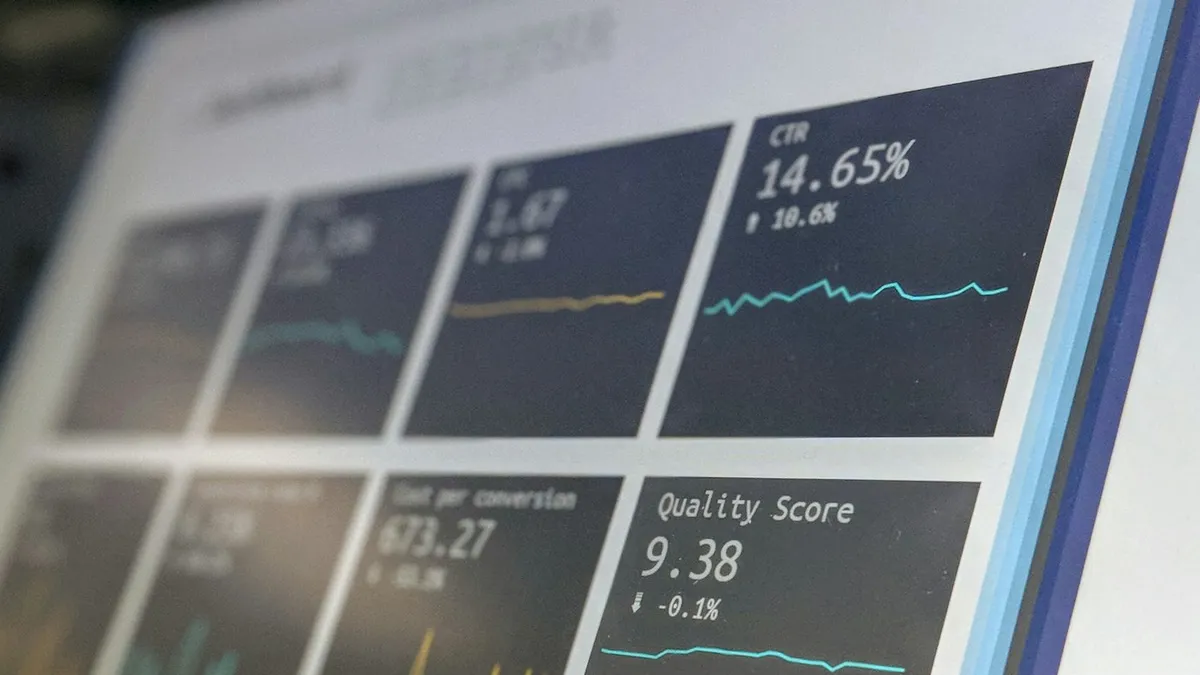
The top 80-120px of a dashboard's content area is prime real estate. Don't waste it on a welcome message. Put your 4-6 most actionable KPIs there.
Stripe's dashboard does this well, four cards showing total revenue, charges, payouts, and disputes. Each card has a number, a trend indicator (up/down arrow with percentage), and a sparkline. That's it. No labels like "Total Revenue for the Current Period", just "Revenue" with a number and a trend. If you're building anything touching real balances or trades, our fintech dashboard design guide covers the extra rules, decimal precision, staleness indicators, gain/loss color redundancy, that generic metric cards skip.
What makes a good metric card:
- One primary number, large, 28-32px, high contrast
- One comparison, vs last period, target, or benchmark (14px, secondary color)
- One visual, sparkline, mini bar, or trend arrow. Not all three
- Card size: 200-280px wide in a CSS Grid row with
auto-fill, minmax(200px, 1fr)
Here's my unpopular take: most metric cards show too much context. If I need to explain what "MRR" means to a dashboard user, that user shouldn't be on this dashboard. Keep labels short. Provide a tooltip for the confused newcomer rather than cluttering every card with explanatory text.
Getting the type right is half of what makes a metric strip readable; the specifics are in typography in dashboards.
What Content Grid Pattern Handles Mixed Content?
Below the metric strip, dashboards need to display tables, charts, lists, and detail panels. CSS Grid with named areas is the cleanest approach for layouts that shift between viewport widths.
I've standardized on a 12-column grid with 24px gutters for dashboard content. It maps well to common layouts:
- Full-width table:
grid-column: 1 / -1 - Chart beside a data table:
grid-column: span 7+span 5 - Three equal cards:
grid-column: span 4each - Sidebar detail panel:
grid-column: span 4pinned right, contentspan 8left
Why not Flexbox? Flexbox works for single rows but fights you when cards need to align vertically across rows. Grid's auto-rows with minmax(200px, auto) keeps everything aligned without JavaScript calculations. If you're choosing between Grid and Flexbox for your own layouts, our CSS layout patterns breakdown covers the tradeoffs in detail.
Container queries (supported in all major browsers since February 2023) finally let dashboard cards adapt to their container width instead of the viewport. A chart card at 600px shows the full legend. At 300px, it hides it. This matters when users resize panels or use dashboards on different monitors.

How Do You Handle Empty and Loading States?
Skeleton screens. Not spinners. Stripe, Linear, and Notion all use content-shaped placeholders that pulse with a shimmer animation, a smart use of motion to communicate state changes. Keep that loading shimmer visually distinct from any AI-processing indicator; the designing for Apple Intelligence guide explains why Apple reserves its shimmer outline strictly for active AI work rather than generic loading states. For designers who also create motion content outside dashboards, the motion design for social media guide covers how the same timing and attention principles apply to short-form video. This technique reduces perceived load time compared to spinner-only approaches, because a content-shaped placeholder sets an expectation of what's coming instead of an abstract spinning circle.
Here's what I've learned the hard way: you need three states for every dashboard component:
- Loading: skeleton placeholder matching the component's layout
- Empty: illustration + single sentence + CTA ("No invoices yet. Create your first invoice.")
- Error: red/amber banner with retry button, not a full-page error screen
Design all three deliberately instead of bolting them on last; the empty states and error pages guide has the copy and layout patterns for the ones users actually hit.
I once shipped a dashboard where error states showed a generic "Something went wrong" modal that blocked the entire page. One flaky API endpoint made the whole dashboard unusable for 45 minutes. Component-level error boundaries would have isolated the failure to one card while the rest kept working.
For teams implementing these patterns in React, the React Server Components with TypeScript guide on Coding Dunia covers how to structure dashboard data fetching at the component level - each card streams in independently, error boundaries scope cleanly to the card, and loading states are easier to model. It pairs directly with the three-state design pattern above.
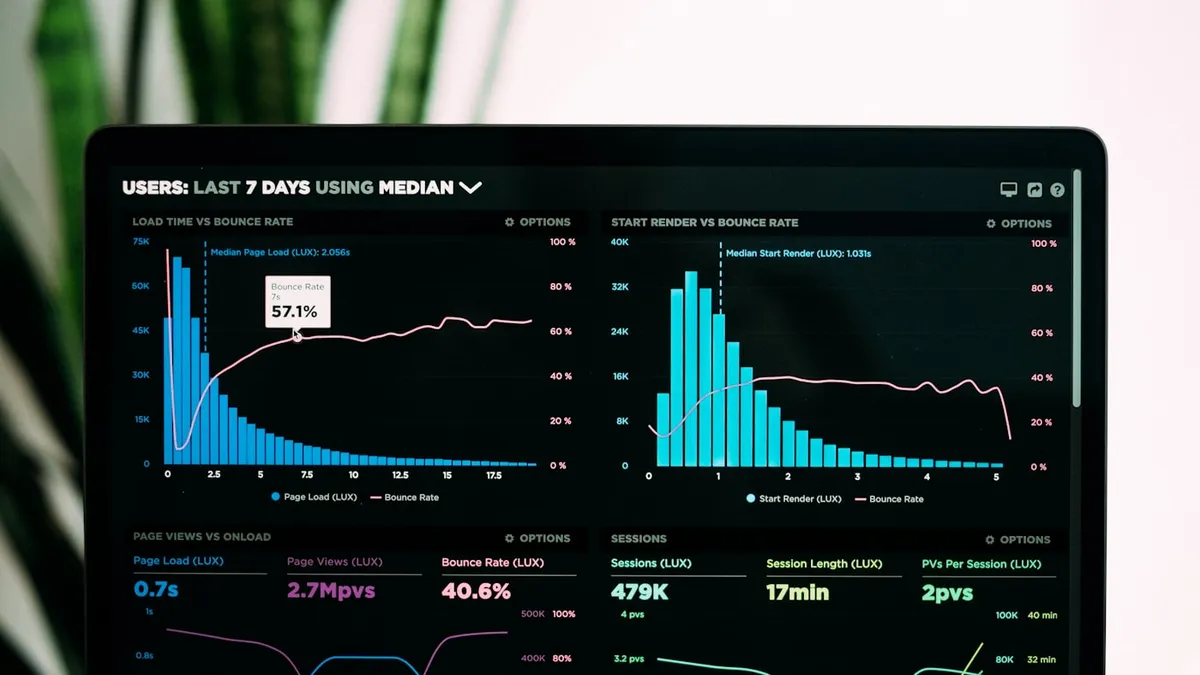
Should You Build Custom Charts or Use a Library?
Use a library. Specifically, use one that respects your token system. Building custom SVG charts sounds fun until you're debugging a tooltip z-index issue at 11pm on a Friday. For picking which chart type to render in the first place, see our dashboard chart type guide.
My current stack for dashboard charts:
- Recharts for React projects, declarative API, good default styling, 40KB gzipped
- Chart.js 4 for lightweight needs, canvas-based, 65KB gzipped, handles 10K+ data points
- Apache ECharts for complex dashboards, heavier (400KB+) but handles geographic data, 3D, and massive datasets
| Library | Best for | Weight | Handles |
|---|---|---|---|
| Recharts | React projects wanting a declarative API | 40KB gzipped | Good default styling out of the box |
| Chart.js 4 | Lightweight needs, canvas-based rendering | 65KB gzipped | 10K+ data points |
| Apache ECharts | Complex dashboards with geographic or 3D data | 400KB+ | Massive datasets, 3D, geographic maps |
One thing every chart library gets wrong: default colors. The built-in palettes usually fail WCAG contrast requirements on white backgrounds. Always override chart colors with your design system's semantic palette. I test every chart combination against Sim Daltonism to verify deuteranopia and protanopia accessibility. If you're still building that palette from scratch, this color palette generator with contrast checks compares Coolors, Adobe Color, and Realtime Colors specifically for UI use.
That whole check only means something if the screen you run it on tells the truth about color. A status green that reads fine on a warm laptop panel can drift amber on the machine your user actually opens the dashboard on, and a calibrator is what keeps a 4.5:1 pass from quietly rotting between now and the next release.
What Makes Dashboard Tables Actually Usable?
Tables are the workhorses of dashboards. And most of them are terrible. Here's what separates a functional data table from a decorative one:
- Fixed header on scroll, position: sticky, z-index: 10, background: solid (no transparency)
- Row height: 48-52px for comfortable scanning, 36-40px for dense data views (our data density guide covers when to offer both as a toggle)
- Column alignment: left-align text, right-align numbers, center-align status badges
- Sort indicators: visible on the active column, subtle arrows on other sortable columns
- Pagination vs infinite scroll: use pagination for data people reference ("page 3, row 7"). Use infinite scroll for feeds nobody bookmarks
I've shipped tables with both TanStack Table (React) and AG Grid. TanStack gives you full control but requires more setup. AG Grid works out of the box for enterprise-grade features like column pinning, row grouping, and Excel export. Pick based on how much customization your design needs. If your team is migrating data fetching off REST hooks, the TanStack Query + TypeScript guide on Coding Dunia covers the server-state side that pairs naturally with TanStack Table.
Responsive tables on dashboards? Don't overthink it. Most dashboard users are on 1366px+ screens. A horizontal scroll with a fixed first column handles the rare tablet user. Don't stack table rows into cards unless mobile is a primary use case.

What Are the Dashboard Design Trends for 2026?
It looks boring, and that's a compliment. The best dashboard designs of 2026 (Linear, Stripe, Grafana, Vercel) share a set of unglamorous decisions: a 256px sidebar, 4-6 KPI cards, a 12-column content grid, skeleton loading states, and both color themes shipped from day one (getting that second theme right is its own discipline, covered in the dark-mode dashboard patterns). None of that wins awards. All of it survives the 200th session of daily use, which is the only test that matters. These are generic patterns, though, our dashboard design patterns by industry roundup covers where healthcare, logistics, and retail dashboards need to diverge from them. The SaaS admin panel layouts writeup is the one I reach for on permission-heavy back-office tools, where navigation depth and role-based views matter more than a strip of KPI cards.
If you want a modern dashboard design that holds up, steal the checklist instead of the screenshots:
- Sidebar navigation with a 64px collapsed icon rail
- Metric strip capped at six numbers, each with one comparison and one visual
- CSS Grid content area with
auto-rows: minmax(200px, auto)alignment - Three states (loading, empty, error) designed for every component
- Chart colors pulled from your token system, verified against WCAG contrast
Would your users notice if a metric disappeared tomorrow? If not, cut it now. Density with discipline beats decoration every single time, and the teams behind the dashboards people praise in 2026 figured that out years ago.
The cockpit-not-a-report idea at the top of this page isn't mine. It's the whole argument of one book, and if the way this article thinks about affordances and signifiers landed for you, the source is worth the shelf space.
The trend that matters most in 2026 isn't a visual one, it's decomposition. A single dashboard page can't carry every vertical's needs, so the pattern that's winning is a hub of shared fundamentals feeding specialized guides: dark mode patterns for teams shipping both themes from day one, fintech patterns for anything touching real money, and data density patterns for the power-user tables that a generic template always gets wrong. See the Related Articles below for all three.
Build this grid yourself
Reading span numbers is not the same as seeing them. The generator below lays out the exact grid specced above, with the sidebar and metric strip in place. Change the app type, change the density, and shuffle until the arrangement matches the content you actually have.