TL;DR: Coolors.co wins for speed and daily palette exploration. Adobe Color is best if you're already inside the Creative Cloud ecosystem. Realtime Colors shows your palette on a live website mockup. Huemint uses AI to apply colors to realistic templates. Manual picking still matters, generators get you 80% there.
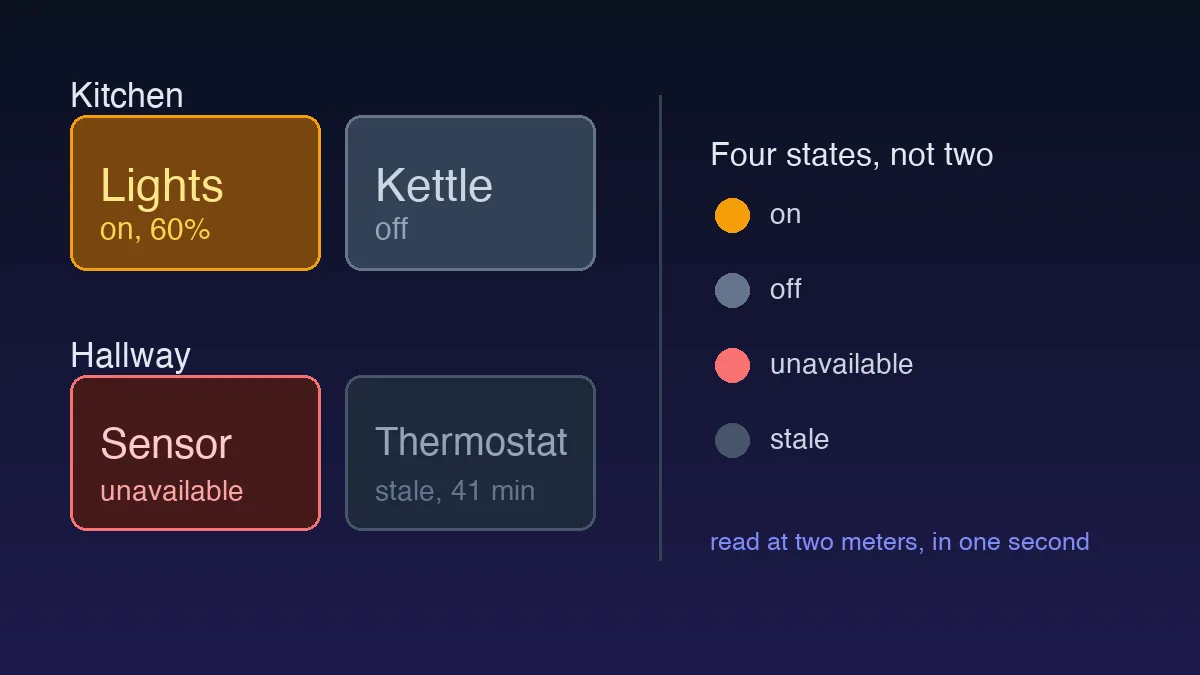
The generator above is the quick way to try a palette: pick four colors, watch them land on a live interface, and read the WCAG contrast before you commit. It has a full-screen page of its own if you want to build there. This guide answers the other question, which dedicated tool earns a place in your workflow, and where each one lets you down on client work.
WebAIM Million Report (2025): 79.1% of the top 1 million homepages had low-contrast text failures. Building palettes that hit WCAG 2.2 AA (4.5:1 for body text, 3:1 for large text) at the generator stage prevents downstream accessibility fixes that take 3-5x longer.
Color palette generators compared
This table covers curated picks from real projects.
| Generator | Price | Free tier | Contrast checker | OKLCH support | Best for |
|---|---|---|---|---|---|
| Coolors | $3/mo Pro | Unlimited free palettes | Yes, side panel | No (HEX/RGB/HSL only) | Fast iteration |
| Adobe Color | CC subscription | Free tier with sign-in | Yes, integrated | Partial | Adobe-heavy workflows |
| Realtime Colors | Free | Full free | Visual contrast preview | No | UI mockup preview |
| Huemint | Free | Full free | No (contrast not focus) | Yes (CSS color-mix) | AI-generated brand palettes |
How do you choose a UI color palette generator?
A UI color palette generator has one job the swatch tools miss: it shows your colors on a real interface, not five squares on white. People search for this category under half a dozen names, UI color generator, UI color scheme generator, UI palette generator, and they all mean the same thing: something that builds interface colors and lets you judge them in context. The four tools below sit at different points on that spectrum, so the choice comes down to what you need to see before you commit.
Here's what I weigh when I pick one:
- Does it preview on a real UI? You judge color where it lives: buttons, cards, nav, body text. Tools that only show swatches are for exploring, not deciding.
- Does it print contrast ratios? A ratio and an AA/AAA verdict beat "looks fine to me". Some tools have it built in, some don't, and the comparison table above says which.
- Which color spaces does it export? OKLCH matters if you build tonal scales, because equal steps look equal. HEX-only export means converting by hand.
- Does it nudge you toward the 60-30-10 split? Background 60%, surfaces and text 30%, accent 10%. A tool that shows proportions makes an overweight accent obvious fast.
- Can you share the exact palette? A link that reopens the same colors keeps client feedback on real hex values.
The widget at the top of this page covers those five on a four-color palette. For a full design-system build you'll still want one of the dedicated tools below, and most of this guide is about which.
Why Most Designers Pick Colors Wrong
Here's an unpopular opinion: spending more than 20 minutes choosing your initial palette is wasted time. Colors change. Stakeholders have opinions. Users don't care whether your blue is #2563EB or #3B82F6. What they care about is whether the button looks clickable and the error message looks urgent.
Spending more than 20 minutes choosing your initial palette is wasted time.
I've watched designers agonize over palette selection for entire afternoons. Meanwhile, the layout had no visual hierarchy and the type scale was a mess. Color matters, but it's not where most projects fail.
That said, a bad palette will sink a good layout. So let's talk tools.
How does Coolors compare for speed and exports?
Coolors leads on raw iteration speed, you hit spacebar for a new five-color set in under a second, and it exports to HEX, RGB, HSL, and SCSS variables on the free tier. The $3/month Pro adds collections and photo-based extraction.
Coolors is fast. Stupidly fast. Hit spacebar, get a new five-color palette. Lock the colors you like, keep generating. I've built palettes for three different client projects in under ten minutes using this workflow.
The free tier handles most needs. You get unlimited palette generation, color blindness simulation, contrast checking, and export in HEX, RGB, HSL, and SCSS variables. Coolors Pro costs $3/month and adds palette collections, advanced export formats, and photo-based palette extraction.
Is it worth paying? Honestly, yes. Three bucks a month for unlimited collections saves me from maintaining spreadsheets of hex codes. But if you're a student or working on one project at a time, the free tier is plenty.
One weakness: Coolors generates palettes in isolation. You see five color swatches on a white background. That looks nothing like your actual interface.
Is Adobe Color worth the subscription?
Yes if you already pay for Creative Cloud, even the $9.99/month Photography plan includes full access. The color wheel with harmony rules and the 2021 Accessibility Tools justify the price for designers who need to defend palette choices to clients.
Adobe Color (formerly Kuler) has been around since 2009. It's free with any Creative Cloud subscription, even the Photography plan at $9.99/month includes access. The tool offers color wheel exploration with harmony rules (analogous, complementary, triadic, split-complementary) and a massive community library with thousands of shared palettes. People hunt for it under a few names, an Adobe color scheme generator, an Adobe color palette generator, or an Adobe color theme generator, but it's all the same tool at color.adobe.com.
What makes Adobe Color different? The color theory engine. You pick a harmony rule, drag one point on the wheel, and the other colors shift mathematically. It forces you to understand why certain colors work together, not just that they do.
I've used Adobe Color on every project where the client wanted a "scientific" justification for the palette. Showing them the complementary relationship on a color wheel shuts down the "can we try teal instead?" conversation faster than any argument.
The downside is workflow friction. Saving palettes to your CC Libraries works great in Photoshop or Illustrator. It's clunky in Figma. You'll end up copying hex codes manually.
How does Realtime Colors help UI mockups?
Realtime Colors paints your primary, secondary, accent, and text colors onto a live website preview so you see headings, buttons, cards, and body text update instantly. The 60-30-10 distribution rule becomes obvious in context, and weak palettes reveal themselves before you commit any code.
Realtime Colors (realtimecolors.com) solves the biggest problem with every other generator. It shows your colors on an actual website layout, not isolated swatches. You pick a primary, secondary, accent, and text color, and the preview updates instantly across headings, buttons, cards, and body text.
Why doesn't every palette tool do this? Seeing five squares of color tells you almost nothing about whether those colors will work on a dashboard or a landing page. Realtime Colors is free, no signup required, and it exports to CSS variables with one click.
The 60-30-10 distribution rule becomes obvious here. Your dominant color covers 60% of the surface area (usually backgrounds and large containers), the secondary takes 30% (headings, cards, navigation), and your accent gets just 10% (CTAs, active states, highlights). When you apply this ratio, weak palettes reveal themselves immediately, too much accent makes the page feel like a carnival.
If you're building a design system in Figma, export your Realtime Colors palette as CSS custom properties, then map them directly to your Figma color styles.
When should you use Huemint?
Use Huemint early in branding projects, when you want AI to apply candidate palettes to realistic templates like website headers, logo lockups, and magazine layouts. Skip it for production palettes, customization is limited and contrast checking isn't built in.
Huemint takes a different approach. You don't just generate abstract palettes, you apply them to realistic templates. Website headers, logo lockups, gradient backgrounds, magazine layouts. The AI engine considers color relationships and readability when placing colors.
The tool is free. It runs in the browser. And it produces surprisingly usable results on the first try.
Where Huemint falls short is customization. You can't fine-tune individual element colors the way you can in Realtime Colors. I use it early in projects to explore directions, then switch to Coolors or manual picking for the final palette.
How do you build a palette manually?
Start in Realtime Colors for direction, refine hues in Coolors with locked swatches, check WCAG 2.1 AA ratios (4.5:1 body, 3:1 large), test against real components in the browser, then build light and dark variants together. Manual judgment catches the cases generators miss, especially primary colors that hit 3.2:1 against white.
No generator replaces understanding color theory fundamentals. Generators don't know that your fintech app needs muted blues to convey trust, or that your fitness brand needs saturated warm tones. They don't know your competitor's palette or your brand guidelines.
Here's my typical workflow on a real project:
- Start in Realtime Colors to establish a rough direction
- Refine individual hues in Coolors with colors locked
- Check WCAG 2.1 AA contrast ratios, minimum 4.5:1 for body text, 3:1 for large headings (WCAG 2.1, 2018)
- Test against actual components in the browser using DevTools
- Build light and dark mode variants simultaneously
The contrast checking step catches problems generators miss. I've thrown away beautiful palettes because the primary color only hit 3.2:1 contrast against white backgrounds.
How Does Each Tool Handle WCAG Accessibility?
WCAG 2.1 Level AA requires 4.5:1 contrast for normal text, 3:1 for large text (18px+ or 14px bold), and 3:1 for UI components like input borders and icon buttons. None of the generators I tested automatically enforce these ratios, but they handle checking differently.
Coolors has a built-in contrast checker under the three-dot menu on any swatch. Enter your background color, it shows the ratio and pass/fail for AA and AAA. Fast, but you check one pairing at a time. It also includes a color blindness simulation mode that previews your palette as protanopia, deuteranopia, and tritanopia users see it.
Adobe Color added Accessibility Tools in 2021. The contrast checker shows multiple text/background combinations simultaneously and flags failures with red indicators. There's also a "Color Blind Safe" mode that simulates 8 types of color vision deficiency and actively flags combinations that become indistinguishable.
Realtime Colors doesn't have a built-in contrast checker, you see the colors applied to a layout, which is somewhat informative (bad contrast becomes obvious when text looks washed out), but you don't get numerical ratios. Run your final palette through the WebAIM Contrast Checker separately.
Huemint doesn't check accessibility at all. It's an exploration tool, not a production-ready tool. Never ship a Huemint palette without running contrast ratios manually.
My rule: don't leave color selection without running every text/background combination through a contrast checker. I use Colour Contrast Analyser (free desktop app) as the final check before handing off tokens to development.
Picking the Right Tool for Your Project
Skip the analysis paralysis. Here's the decision tree I use. Solo project with tight deadlines? Coolors. Client presentation where you need to justify choices? Adobe Color. Building a website and want to see colors in context? Realtime Colors. Exploring wild directions early in a branding project? Huemint.
Most UI design tools now include basic palette generation built in. Figma's color picker shows harmonies, and Penpot has added palette generation of its own. These work for quick adjustments but don't replace dedicated tools for initial palette creation.
The best palette isn't the one that wins design awards. It's the one that passes contrast checks, survives stakeholder review, and works at every screen size. Start generating. Start testing. Adjust until it works.
Try our own free generator
Enough theory. We built our own color palette generator and use it on real client work, so go ahead and test it right here. Pick four colors, watch them land on a working interface, and read the live WCAG contrast before you commit to anything. Nothing leaves your browser.