For years the joke about animating in Figma was that you couldn't, not really. You strung frames together, prayed Smart Animate matched the layers, and accepted that anything past a simple crossfade meant opening another app. That era just ended. Figma Motion, announced at Config 2026, drops a real timeline onto the canvas, and it changes where interface motion gets made.
So what actually changed? Not a plugin, not a prototype trick. A native keyframe timeline, sitting in the same file as your components, working on the properties you already know.
TL;DR: Figma Motion is native timeline and keyframe animation on the Figma canvas, launched at Config 2026. You set keyframes on position, scale, opacity, and rotation, then shape easing on a curve editor, all inside the file where your design already lives. It handles UI motion without the round trip to After Effects or Rive.
What Is Figma Motion, Exactly?
Figma Motion is keyframe animation built into Figma Design itself. You pick a layer, open the timeline, and set keyframes at points in time for properties like X and Y position, scale, rotation, opacity, and corner radius. Figma fills the frames between them. You shape how that in-between feels using an easing curve editor, the same bezier control motion designers already live inside.
The important word is native. This isn't Smart Animate guessing at what moved between two boards. It's an explicit timeline where you own every keyframe, and it reads the real layers of the real design. No export, no re-linking, no separate source of truth drifting out of sync with your components. The frame you designed becomes the frame that moves. Motion was one announcement among several at Config, and the Config 2026 recap sets it beside Code Layers, Shaders and the Agent upgrades.
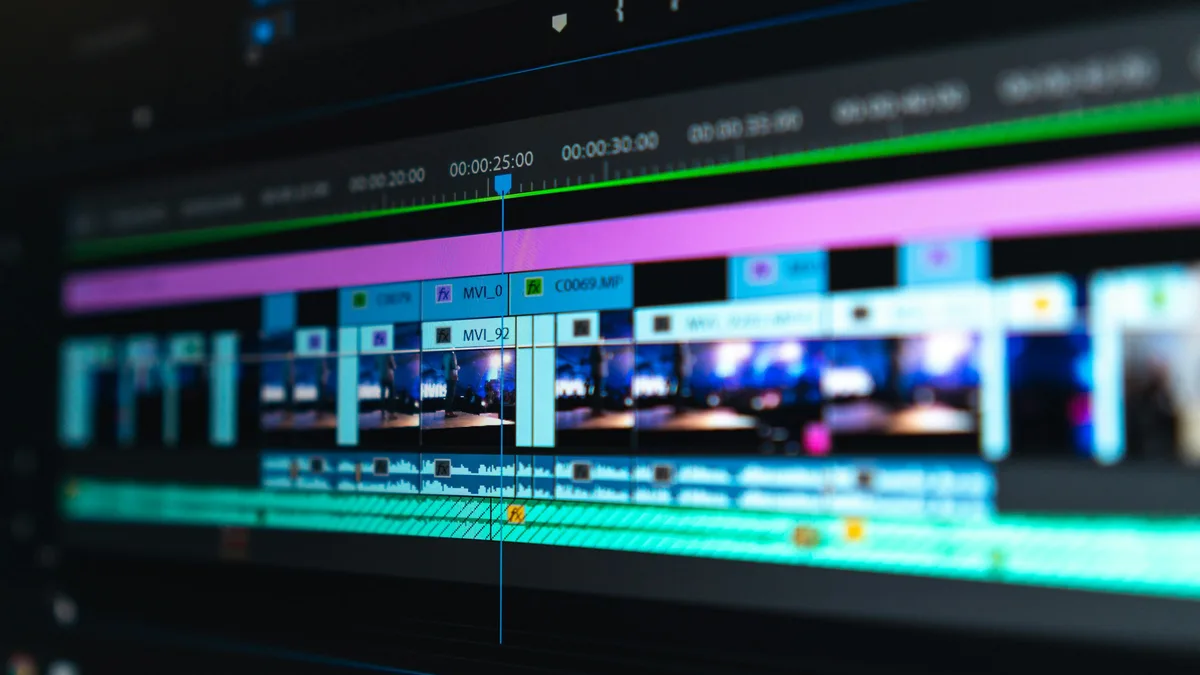
Here's the honest take: the win isn't raw power, because After Effects still buries it on sheer capability. The win is that the animation and the design finally share one home. That collapse of the round trip is worth more to a working product team than another easing preset ever could be.
Figma Motion's real breakthrough isn't power. It's that your animation and your design finally live in the same file, with no export in between.
How Do You Make Your First Animation?
Start small. Pick one button and make it settle on appear. The whole loop takes about two minutes once you know the beats.
- Select the layer you want to move, then open the Motion timeline panel.
- Set a starting keyframe at 0ms with the layer at opacity 0 and scale 0.9.
- Move the playhead to roughly 200ms and set a second keyframe at opacity 1 and scale 1.
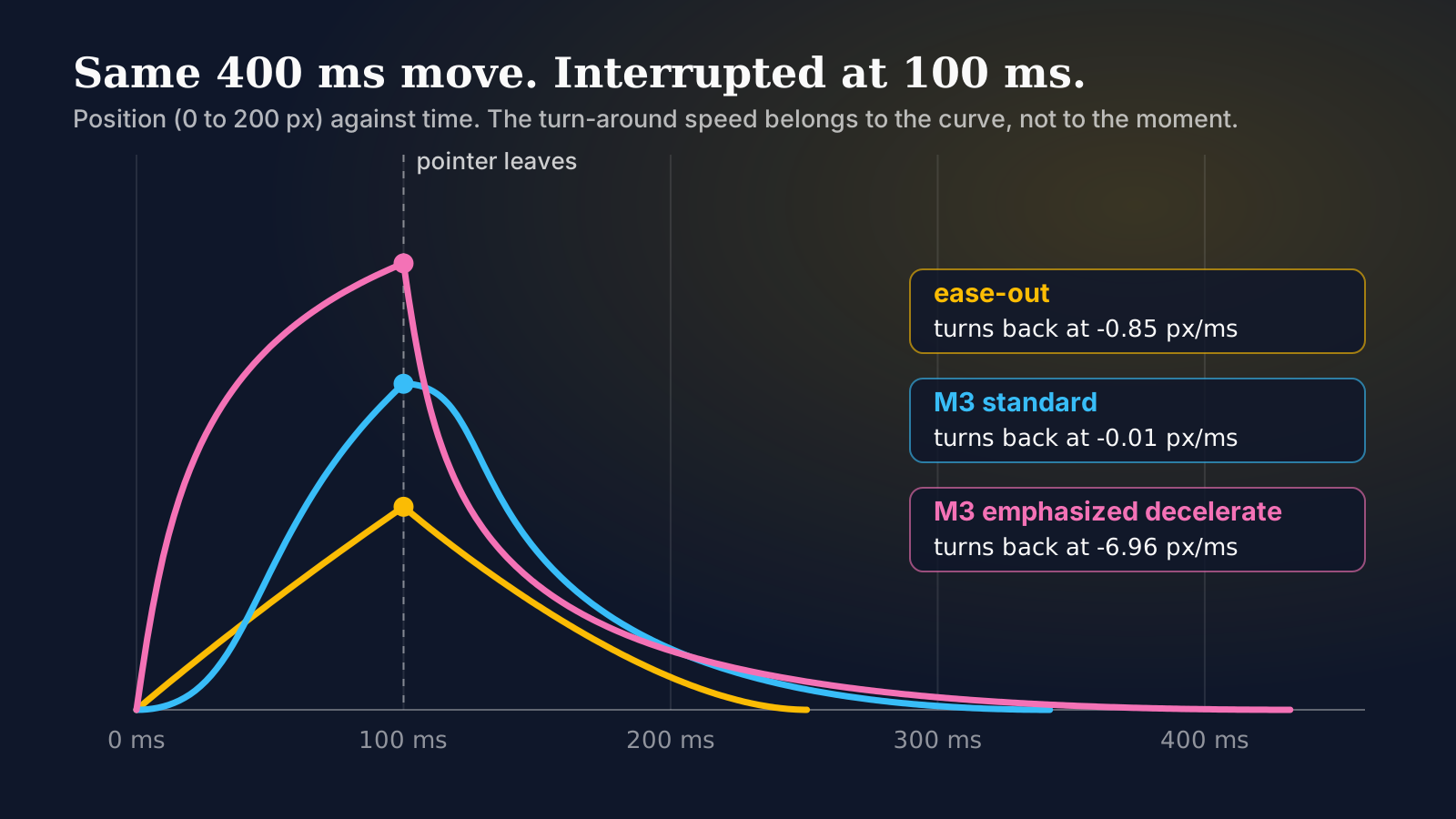
- Open the easing curve on that segment and pull it to an ease-out, so the motion decelerates into place rather than stopping cold.
- Scrub the timeline back and forth to feel the timing, then nudge that 200ms until the settle reads right.
That's it. You just built a reveal that, a year ago, meant a prototype interaction plus a lot of hoping. On a card grid, the quickest win is in the curve editor: drag the settle from a lifeless linear ramp to a soft ease-out, and the difference between cheap and considered is that single move.
A few habits carry over straight from timeline work. Stagger children instead of firing a whole list at once. Keep motion to transform and opacity where you can, since those are the cheap properties on the web too. And respect prefers-reduced-motion in the built version, because a switch some users rely on doesn't stop mattering just because the animation was born on the canvas.
Where Does It Fit Your Toolkit?
Figma Motion doesn't erase the specialists. It changes the default. Most UI motion, the micro-interactions, transitions, loaders, and reveals that make a product feel finished, now has a natural home where the design already sits. You leave the canvas when the job truly needs it: cinematic layering in After Effects, or runtime state machines in Rive. If that's a handful of sequences a year rather than your daily work, price the single-app plan instead of the full Creative Cloud bundle. If you're deciding which of those moments actually deserve motion in the first place, our guide to when to animate micro-interactions covers the duration and easing rules.
| Tool | Best For | Where the Work Lives |
|---|---|---|
| Figma Motion | Micro-interactions, transitions, loaders, reveal choreography | Native, inside the same file as the components |
| After Effects | Cinematic, layered, effect-heavy sequences | Separate app; still wins on sheer capability |
| Rive | Interactive state machines, runtime-driven animation | Separate app; built for input-reactive motion |
If you're still mapping out your stack, our motion design tools for UI designers guide covers where After Effects, Rive, and Lottie each earn their place, and Figma Motion now sits in front of them as the first stop rather than a step you take after exporting. For the code side of the same question, web animation with CSS versus GSAP walks through what to reach for once the design leaves Figma and becomes a shipped page. And if the destination is a React codebase specifically, the Framer Motion guide covers the library that picks up where Figma Motion's export leaves off.
Where Does Figma Motion Still Frustrate?
Plenty of places, and pretending otherwise helps nobody. Long timelines get unwieldy fast. Past a few dozen keyframes across a handful of layers, you start wishing for the track grouping and pre-comp nesting that After Effects has had for two decades. The panel is fine for a 400ms button settle. It starts fighting you on a 6-second onboarding sequence.
Timing handoff is the other rough seam. A designer can set a settle at 220ms with a custom bezier and feel great about it, then a developer implements it as 300ms ease-out because that was the nearest token in the codebase. The animation ships slightly wrong and nobody logs a bug, because nobody can prove a feel. A dull workaround works: write the duration and the four bezier numbers into the layer name, so the value survives the trip even when the export doesn't.
Performance intuition doesn't transfer either. Something can scrub beautifully on the canvas and stutter on a mid-range Android phone, because Figma isn't running the browser's compositor. Animate a shadow blur or a width value and the canvas won't complain. The device will. Build the habit of asking "would this be cheap in CSS?" while you're still setting the keyframe.
What's the Short Version?
Figma Motion puts a real keyframe timeline on the Figma canvas, so UI motion gets made where the design lives instead of in a separate app. Set keyframes on position, scale, and opacity, shape the easing, scrub until it feels right. It won't replace the specialist tools for cinematic or runtime work, and it doesn't need to. For the everyday interface motion most teams ship, closing the round trip is the whole point, and that's the part it nails.