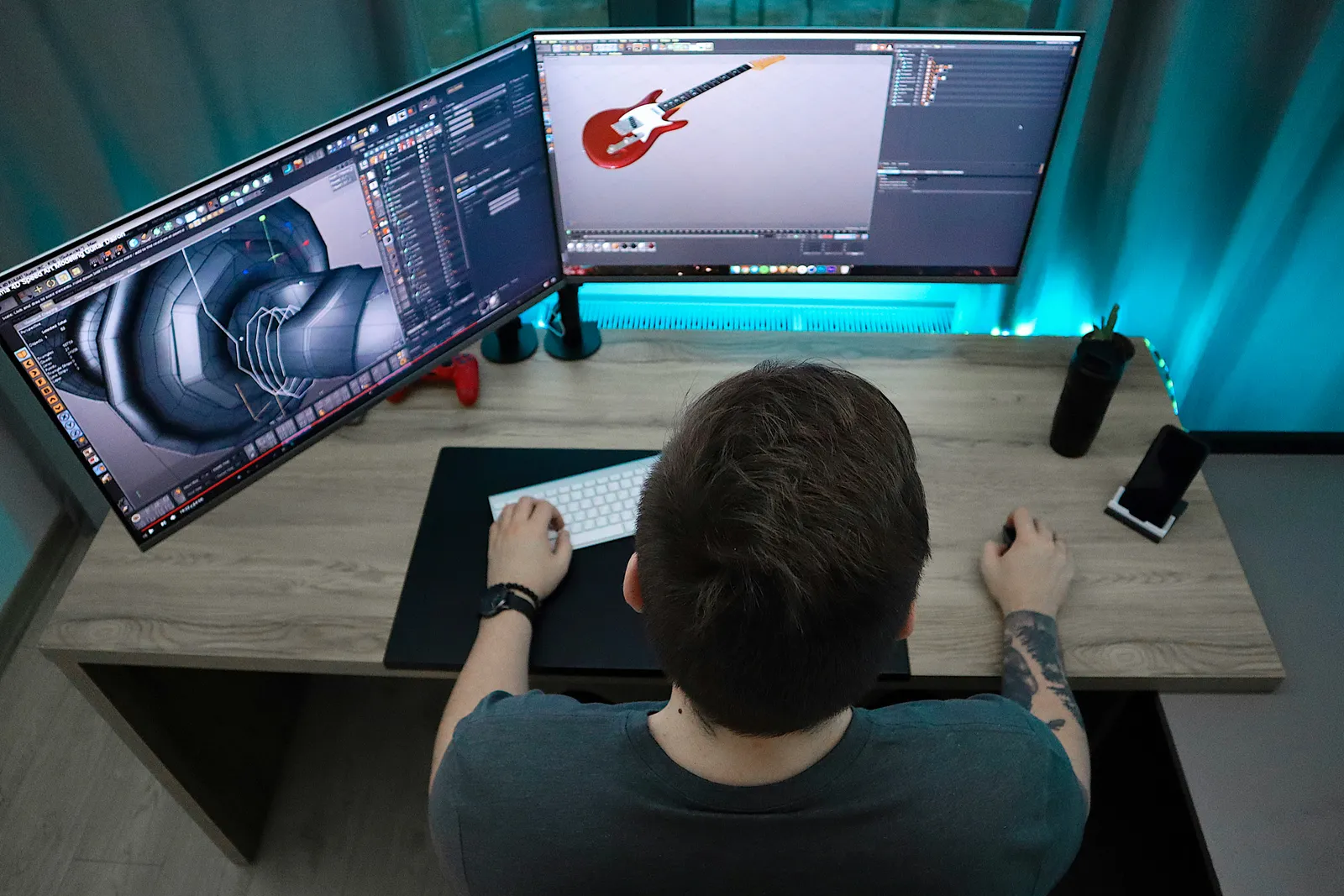
I rebuilt the same forty second product launch animation twice this spring, once in After Effects the way I've done it for a decade, and once in Jitter because a client's designer refused to install anything. The Jitter version took an afternoon. The After Effects version took two days, and honestly, most viewers couldn't tell them apart.
That's the uncomfortable part of this comparison. Search interest in Jitter has climbed hard over the past year, and most of what you'll find is either a launch announcement or a feature list. Neither tells you the thing you actually want to know: at what point does the browser tool stop being enough?
TL;DR: Jitter wins for UI designers, marketers, and Figma-native product teams who need polished, on-brand motion fast, no install, no render queue, no Adobe licence. After Effects wins the moment you need compositing, character rigging, 3D, tracking, or anything procedural. Learn Jitter first if you design interfaces. Keep After Effects if you produce film-grade motion.
What Is Jitter and How Does It Actually Differ From After Effects?
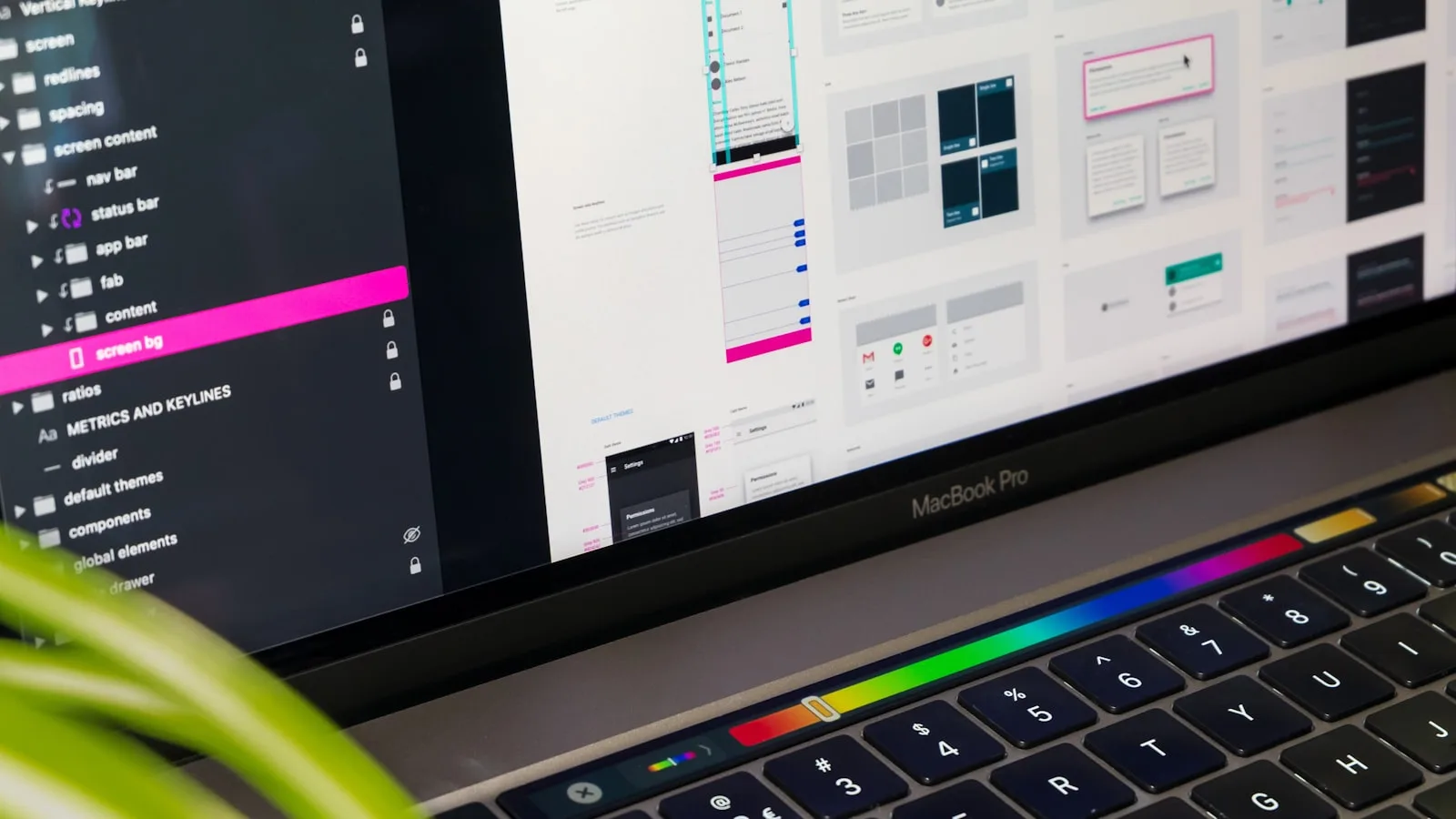
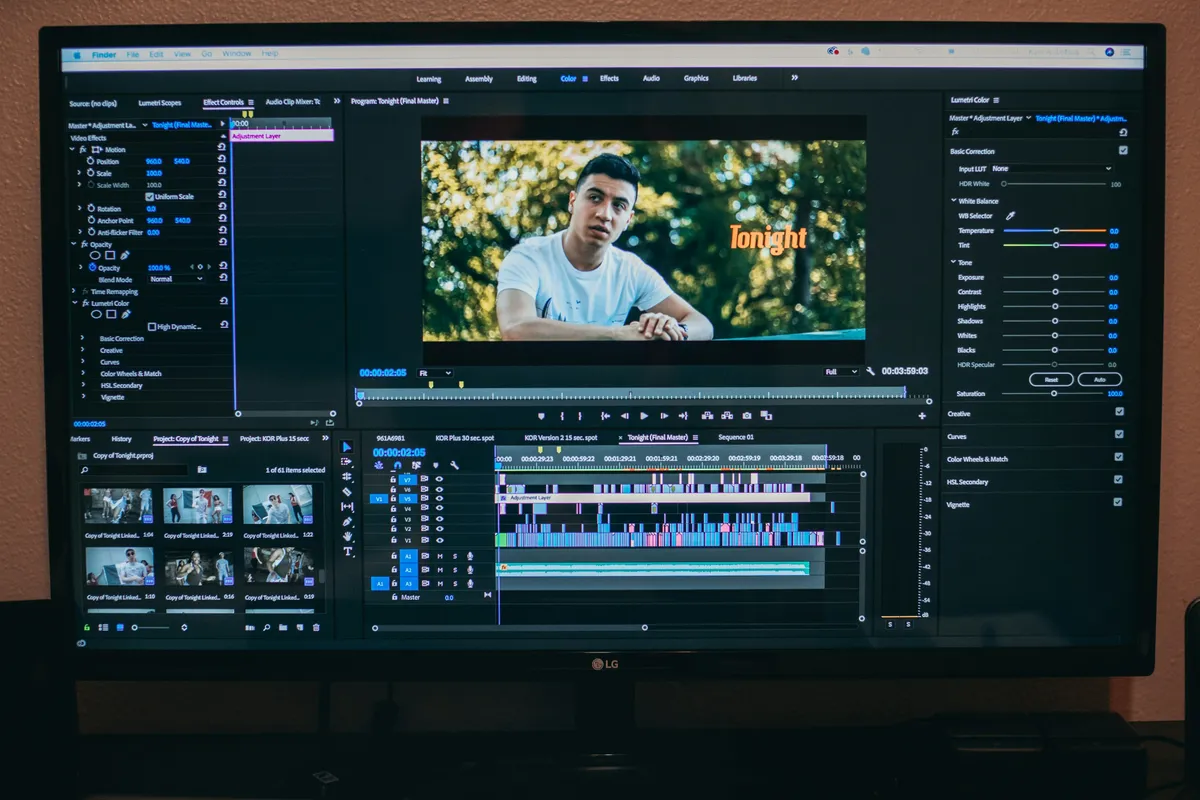
Jitter is a browser-based motion design tool with a Figma-shaped editor. You open a URL, you get a canvas, layers, a timeline, and a properties panel that a product designer can read without a tutorial. There's a Figma plugin that pulls frames straight across, and, this is the important bit, the layer hierarchy survives the trip. Groups stay groups. Components stay components.
After Effects works from the opposite direction. It's a compositor first, with a timeline stacked on top and thirty years of accumulated depth underneath: expressions, mattes, motion tracking, 3D cameras, puppet warps, and a plugin ecosystem so large that some studios' pipelines are mostly plugins.
The practical difference shows up in how you start work. In Jitter you drop a preset on a layer and it animates, one click, no keyframes touched. In After Effects you build the animation. That sounds like a knock on Jitter until you count how many interface animations are genuinely bespoke. In my experience? Very few. A fade, a slide, a scale with a decent ease curve, staggered across a list, covers most of what ships.
Jitter animates the components your design system already made. After Effects makes you rebuild them first.
Export is where Jitter stops feeling like a toy. Video, GIF, and Lottie all come out of the same file, and there's no render queue to babysit. Audio arrived recently too, with soundtracks, voiceover, multi track volume control, and a waveform to sync against. That closed the last gap for product launch videos.
What Do Jitter and After Effects Cost, and What Comes Out?
| Jitter | After Effects | |
|---|---|---|
| Install | None, runs in browser | Desktop app, heavy |
| Free tier | Yes, with limits | No, trial only |
| Paid entry | Around $16 to $19/month | Around $23/month (annual) |
| Team plan | About $39/user/month | Creative Cloud teams |
| Export | Video, GIF, Lottie | Video, image sequence, Lottie via plugin |
| Figma import | Native, keeps hierarchy | Manual rebuild or plugin |
| Compositing | None | Industry standard |
| Learning curve | An afternoon | Months |
Two numbers from my own work. The Jitter version of that launch animation had eleven revisions over four days, and each one took under ten minutes because the client's designer edited the Figma frame and I re-imported. The After Effects build had four revisions and each one cost roughly ninety minutes, because every design change meant relinking rebuilt shape layers. The tool wasn't slower. The pipeline was.
Who Should Learn Jitter First?
UI designers, and it isn't a close call. If you already build components in Figma, Jitter is the shortest path from a static frame to something a developer can ship. The presets do the boring work, the timeline is there when you need finer control, and the file lives at a URL your team can comment on. No render, no export, no Dropbox link.
Marketers running an in-house brand also fit this profile cleanly. Ad variants, social cutdowns, app store previews: all of it is templated motion that needs to stay on-brand and land this week, not next quarter. That's Jitter's home turf.
The broader question of where each tool sits for someone crossing over from interface work is covered in the motion design tools comparison, which walks the full ladder from Figma Smart Animate up to After Effects.

Where Does Jitter Fall Down?
Depth. That's the whole answer, but it's worth being specific about which depth.
There's no real compositing. No node graph, no advanced matte work, no roto, no tracking. If your shot needs footage integrated with graphics, Jitter isn't in the conversation. There's no character rigging either, so anything with an articulated figure is out. And there's nothing procedural: no expressions driving a hundred instances from a data source, no generative systems. Need two hundred chart animations from a spreadsheet? Jitter can't, and neither can After Effects comfortably, which is where a tool like Cavalry earns its licence. The Rive vs Cavalry breakdown covers that side of the market.
Here's the opinion that'll annoy people: Jitter's limits are mostly a feature. A tool that can't do compositing can't tempt a product designer into spending three days on a shot nobody asked for. Constraint is speed. But be honest about which side of the line your work sits on, because discovering the limit halfway through a project is expensive.
One more caveat. Interactive motion, animation that responds to runtime state, isn't Jitter's job either. A Lottie file plays; it doesn't listen. If your loading indicator needs to know it succeeded, you want Rive, or you want code, and the CSS vs GSAP comparison covers the code-side call.
The Decision in One Paragraph
Design interfaces, work in Figma, ship marketing motion? Learn Jitter this week and you'll be productive by Friday. Composite footage, rig characters, work in 3D, or maintain a studio pipeline? After Effects stays, and nothing about Jitter changes that. Do both kinds of work, like I do? Keep both, and stop pretending the expensive tool is the default. The real shift isn't Jitter beating After Effects. It's that most interface motion never needed After Effects in the first place, and it took a browser tool with a Figma plugin to make that obvious. If your motion pipeline starts even further upstream, at generated footage rather than animated layers, the AI frame and motion tools roundup picks up from there.